Restore
A restore completely erases the target drive and overwrites it with the backed-up data. Afterwards it is identical to the backed-up state, including the file system and all attributes.
The system partition cannot be restored from within Windows. Windows always keeps files open there. It is written back during a reboot, from DOS, or from a maintenance installation on another drive. All other partitions can be restored while the system is running.
If you still need data from the target drive, back it up first.
1. Select the image file
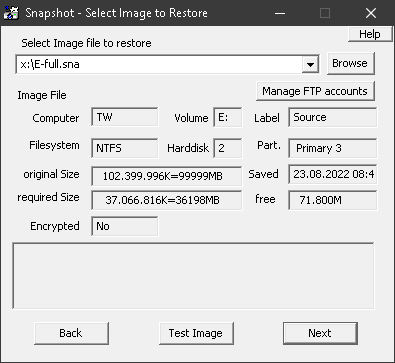
Select the image file. Snapshot shows the properties recorded during the backup so you can identify the right image. Then click Next.
2. Select the target drive
All data on the target drive will then be irretrievably lost.
If you restore to a drive other than the original one, the partition (PartSize) must be at least as large as the backed-up drive. The size is not adjusted in the process. Then click Next.
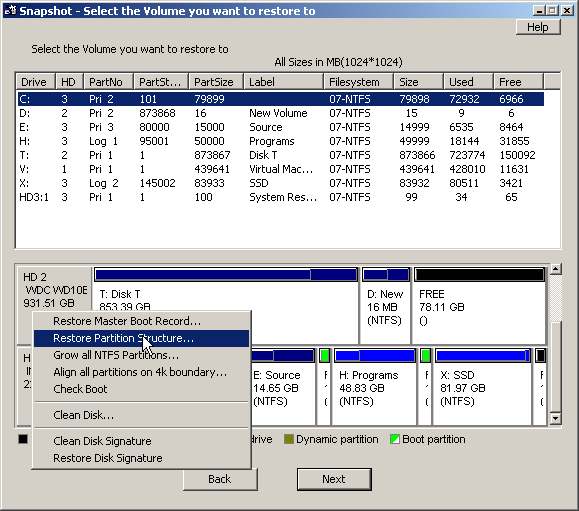
Right-click on the disk (HD1)
- Restore Partition Structure
- Replaces the existing partition layout with the original one and restores the MBR.
- Restore MBR
- Replaces the first sector of the disk, the Master Boot Record, with the original one.
- Grow all NTFS Partitions
- Enlarges all NTFS partitions so that the full space on a larger disk is used.
- Align all partitions on 4k boundary
- Makes all partitions start on a 4k boundary. Usually only needed when moving Windows XP or Server 2003 to new hardware.
- CheckBoot
- Some boot sectors still use cylinder, head and sector addressing. An exact copy on a disk with a different geometry will then not boot. CheckBoot detects this and suggests corrections.
- Clean Disk
- Erases the MBR. Logically, the disk is then as good as new; the data is gone.
- Clean / Restore Disk Signature
- The signature is a 32-bit number in the MBR that Windows uses to identify a disk.
Right-click on a drive (C:)
- Restore
- Restores the drive.
- Assign Drive Letter
- Assigns a letter if the drive does not have one.
- Open / Properties
- Opens the drive in Explorer, or opens the Windows Properties dialog.
- Grow Partition
- NTFS only: adjusts the drive size if the file system is smaller than the partition or there is free space after it.
- Delete Partition
- Deletes the partition.
3. Confirm
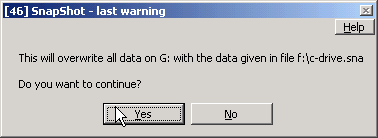
Next comes the usual warning asking whether you really want to overwrite the drive.
If a program is currently using the drive, another dialog appears. Show Processes and Handles shows which programs are in the way, in this example the command prompt and Windows Explorer.
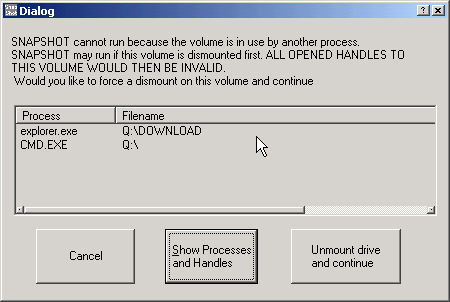
Close these programs or leave the listed directories. Alternatively, unmount the drive with Unmount drive and continue: Windows then terminates all file access to it, and Snapshot continues. This does not work for the system partition.
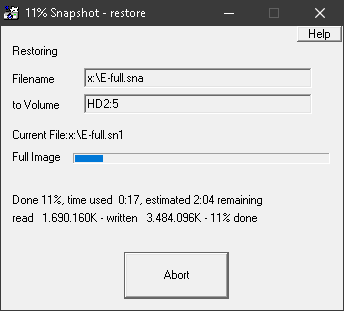
4. Restore in progress
When this display appears, the restore has started. As a rule, the old data has already been destroyed at this point, and the drive is only back in a consistent state at the end. Only cancel if you know exactly what you are doing.
Repeat the process for additional partitions.