Image as a drive
To find or recover individual files or directories, Snapshot creates a virtual drive with all the files and properties of the backed-up disk, similar to a USB drive.
The files are not first extracted to a temporary directory, as with a ZIP archive. They can be used directly on the drive. With NTFS, the security settings are also the same as on the original.
1. Select and mount the image
Select the image file and you will see what was recorded during the backup: computer name, drive letter, size, disk number and your comment. Then choose a drive letter; Snapshot suggests a free one.
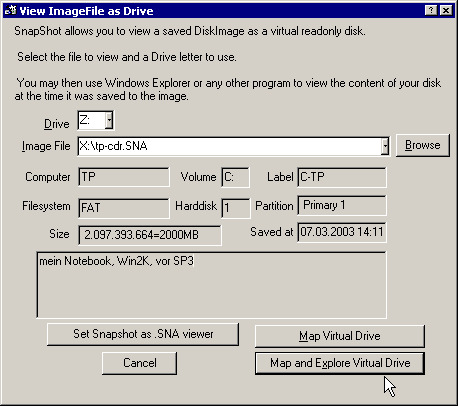
Map and Explore virtual Drive creates the drive, for example Z:, and opens Windows Explorer on it. Set Snapshot as .SNA viewer makes Snapshot the default program for .SNA files. After that, double-clicking an image is all it takes. Setup.exe also sets this up during installation.
2. Work with the drive
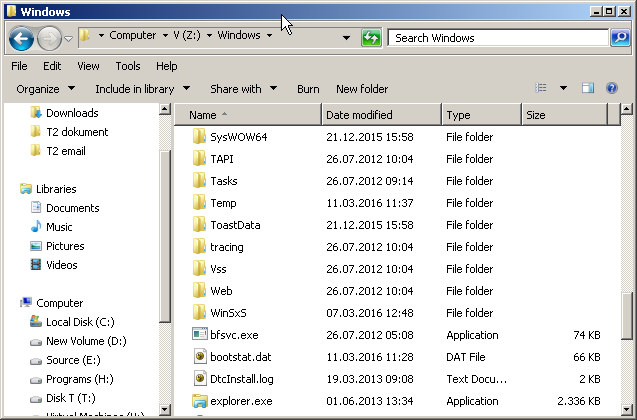
The virtual drive behaves much like a CD-ROM: reading yes, writing no. With NTFS, all attributes are present, i.e. security, compression, encryption. You can compare, copy or directly use the data with any Windows or DOS program. Up to five images can be mounted at the same time.
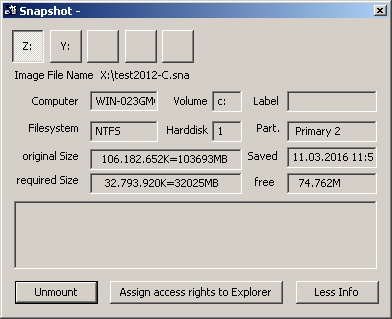
When you are done, press the cancel button in the status window. Snapshot then removes the drive from the system again.
Limitations
All parts must be accessible
If a large image was split into several files, for example for CDs, all parts must be accessible at the same time. They can be on disk, on the network or on CD, but swapping CDs while browsing is not supported.
Windows must recognize the file system
For the virtual drive, Snapshot relies on functions of the operating system. Linux file systems such as Ext3, Reiser or XFS can therefore only be browsed if a driver for them is installed.
Access denied
On a different computer, nobody can initially access folders that were shared only with a specific user. However, the administrator can grant themselves the permissions: via Properties, Security, add user. The image itself remains unchanged. The next time you mount it, you have to grant the permissions again.