Backup
A disk image is an exact copy of a drive in a single file. It contains your data, the operating system's data such as DLLs and the registry, and all attributes: compression, owner, modification date, encryption.
Because Snapshot needs no reboot and you can keep working, frequent backups are worthwhile, especially before an installation or an update. Starting a backup takes only seconds. If the update goes wrong, the previous state is ready to restore. The same goes for servers and industrial automation computers that run around the clock.
1. Select partitions
Select the partitions you want to back up. Hold Ctrl to select several, or press Ctrl+A to select all of them if you want to back up the entire disk and later restore it as a whole.
In addition, Snapshot backs up all partitions on the same disk that are smaller than 512 MB, under the names HD1-1, HD1-2, etc. The computer often needs these to boot (System Reserved). You can turn this off in the advanced options.
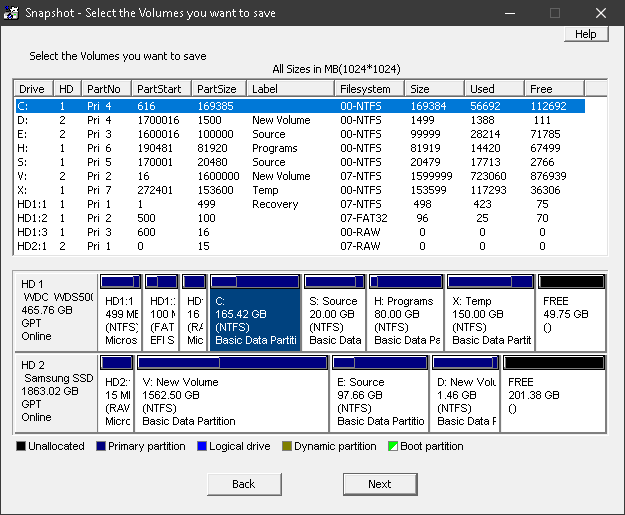
If you selected several drives, the file name must contain the variable $DISK, for example X:\Backup-$DISK.SNA. This becomes X:\Backup-C.SNA, X:\Backup-D.SNA and so on.
What the columns mean
- Drive
- The Windows drive letter.
- HD
- The hard disk the partition is on.
- PartNo
- Number and type of the partition, primary or logical.
- PartStart
- Where the partition starts on the disk.
- PartSize
- Size of the partition.
- Label
- The name you gave the volume.
- FileSystem
- The file system, such as FAT32 or NTFS.
- Size
- The size occupied by the file system. Usually slightly smaller than the partition, never larger. This matters when restoring: a small drive fits into a large partition, but not the other way around.
- Used
- Used space, i.e. what gets backed up.
- Free
- Free space.
2. Specify the location
Specify where the image should be saved. If the extension is missing, Snapshot appends .SNA. Use Manage FTP Accounts to manage FTP servers as targets.
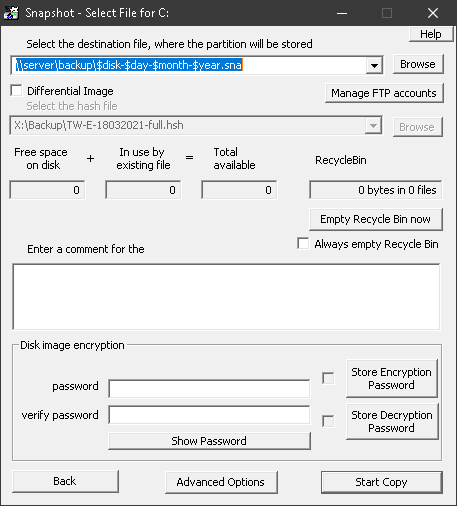
Use the comment field to note what was backed up. When you later have several backups lying around, this helps you find the right one.
Backing up the Recycle Bin rarely makes sense. Snapshot shows how much is in it and, if you like, empties it once or before every backup. This makes the image somewhat smaller.
Encryption
With a password set, the image cannot be used without that password. You enter it twice to guard against typos. With Store Password, Snapshot remembers the password for all images of this user on this computer.
Do not forget the password. Without it, the backup is lost. There is no way to recover it afterwards, not even for the manufacturer.
Start Copy gets things going. The advanced options are for experienced users; the defaults are usually sufficient.
3. Backup in progress
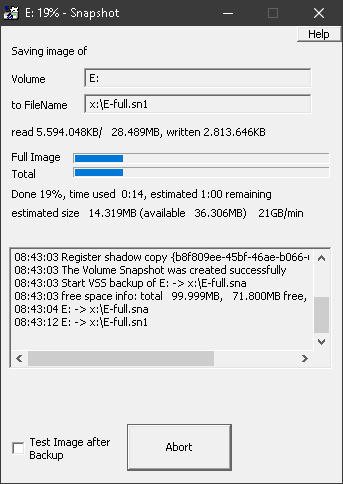
This is the progress display. As soon as the blue bar appears after a few seconds, the state of the disk is frozen. From now on you can keep working, install software, delete files. None of that ends up in the image.
How fast, how big
Speed and compression depend on the data and the computer. As a rule of thumb: megabytes per minute = 0.5 × the processor's megahertz, at about 50% compression. A 3 GHz computer thus backs up around 1.5 GB per minute. Music, videos and compressed files cannot be compressed any further.
If the computer backs up much more slowly, typically around 120 MB per minute, the disk's Ultra DMA mode is usually off. In that case the chipset drivers are missing.
During the backup, Snapshot needs about 8 MB of memory and runs at low priority. If it detects disk access by other programs, it pauses briefly. Normally you will hardly notice the backup running in the background.